
Are you tired of having to rebuild your entire toolchain every time you want to switch models? Now, with the open-source project ComfyUI-relayapi, you can connect any relay station API in ComfyUI and effortlessly call mainstream AI models like GPT Image 2, Gemini, and Veo for one-stop image, video, and audio generation.
Using Custom Nodes to Call Any API in ComfyUI
ComfyUI-relayapi is a lightweight, ready-to-use custom node package. Through a unified configuration interface, it helps users conveniently call various third-party relay station APIs within ComfyUI workflows. Whether it's text generation, image creation, video production, or music synthesis, one node is all you need.
https://github.com/flywhale-666/ComfyUI-relayapi.git

Core Features
This project provides 5 core nodes with clear categorization:
Relay API Settings: Unified configuration of task type, platform, API format, relay station address, model, and API key
Relay Text Generator: Text generation, multi-turn dialogue, and multi-image visual understanding
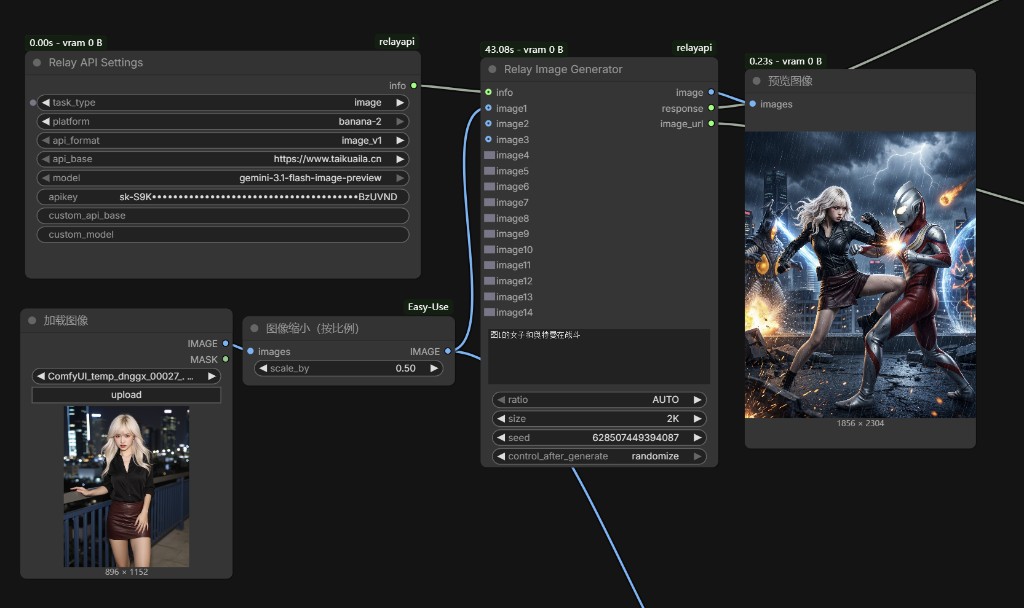
Relay Image Generator: Text-to-image, image editing/reference image fusion
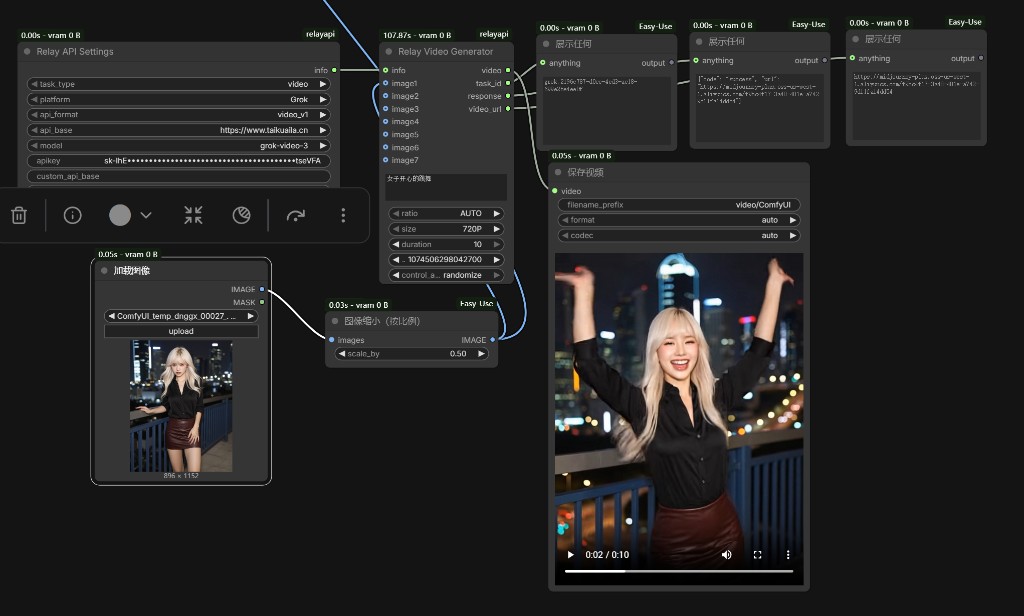
Relay Video Generator: Video generation (supports Grok/Veo with built-in async task creation and status polling)
Relay Sound Generator: AI music generation (deeply adapted for the Suno interface)
Installation
Clone or download the project to ComfyUI's custom nodes directory:
ComfyUI/custom_nodes/ComfyUI-relayapi/Restart ComfyUI
Enter
RelayAPIin the node search bar to see all related nodes
Supported Model Types
Currently supported task types and built-in models:
Text generation: gemini-3.1-flash-lite-preview, claude-opus-4-6, etc. (supports openai_style/gemini_style formats)
Image generation: gpt-image-2, nano-banana-pro, gemini-3-pro-image-preview, etc.
Video generation: grok-video-3, veo3.1, veo3.1-fast (supports V1/V2 interfaces)
Music generation: Suno V3–V5.5 complete mapping (chirp-v3.0 to chirp-fenix series)
Configuration and Usage Tutorial
Step 1: Add a Settings Node
Add a Relay API Settings node to the canvas — this is the upstream configuration hub for all generation tasks. You need to set:
task_type: text/image/video/sound
platform: gemini_style, openai_style, or relay_api_style, etc.
model (model name): e.g.,
gpt-image-2apikey (API key): your relay station key
custom_api_base (optional): custom relay station address
Step 2: Connect the Generator Node
Connect the info output wire from the Settings node to the corresponding generator node, such as Relay Image Generator. Then configure the input parameters:
Prompt
Aspect ratio / Resolution
Reference image (optional, for image editing)
Step 3: Execute and Output
Click "Queue Prompt" to begin generation. All nodes return a response (compact JSON) containing status codes, elapsed time, usage information, and more for easy debugging.
Recommended Relay Station Platforms
Here are several stable, transparently priced relay stations that support ComfyUI-relayapi integration:
QiuQiuToken Platform: Free Registration — Provides GPT Image 2, Opus, Gemini, and other mainstream models with low latency and high concurrency
luchikey API: Free Registration — Supports multiple model calls with affordable pricing
Congming AI: Free Registration — Affordable GPT access
!! Important Notice: All API relay stations carry a risk of shutting down! Start with small amounts, make multiple small purchases, and never invest large sums for commercial use.
Notes and Optimization Tips
API Key Matching: Keys must strictly correspond to their api_base; mixing them will cause empty response errors
Async Task Handling: Video and music generation use a "submit-poll" mechanism; nodes automatically handle the full flow from creation to status querying
Resolution Limitations: Some relay station/model channels may ignore high-resolution parameters (e.g., requesting 1080P but actually returning 720P) — this is a server-side limitation
Content Filtering: If content moderation is triggered, a
PUBLIC_ERROR_UNSAFE_GENERATIONresponse will be returnedAnti-Freeze Optimization: Base64 images in video responses are truncated to length hints to prevent UI lag
Frequently Asked Questions
Q: How do I add a new relay station address?
A: Simply enter the new address in the custom_api_base field of the Settings node; enter delete:address to remove an old address.
Q: Where is the configuration file?
A: Configuration is automatically saved to relay_config.json in the project root directory. ⚠️ Never submit configuration files containing real API keys to public repositories.
Q: Which video generation models are supported?
A: Currently built-in models include grok-video-3, veo3.1, and veo3.1-fast, called via V1/V2 interfaces.


