
In our previous article, we introduced how powerful Sony AI's open-source Woosh sound effects generation model is, and many friends asked: Can it be used directly in ComfyUI? The answer is yes, and someone has already created a ready-to-use node package. Today we'll walk through how to get Woosh running in ComfyUI, from installation to finished output in one go.
What Is the ComfyUI-Woosh Node Package?
ComfyUI-Woosh is a custom node package published on GitHub by developer Saganaki22 that wraps Sony AI's Woosh base model into native ComfyUI nodes. Once installed, you can directly implement text-to-sound-effects and automatic video dubbing in ComfyUI workflows without writing a single line of code. The entire node package provides four core nodes, covering the complete pipeline from model loading to audio output.

Two Installation Methods
Method 1: ComfyUI Manager Installation (Recommended) Open ComfyUI Manager, search for 'Woosh,' click install, and restart ComfyUI. This is the most hassle-free method — dependencies are handled automatically.
Method 2: Manual Installation Navigate to ComfyUI's custom nodes directory, run git clone https://github.com/saganaki22/ComfyUI-Woosh.git, then install dependencies with pip install -r ComfyUI-Woosh/requirements.txt, and finally restart ComfyUI. The advantage of manual installation is version pinning, making it suitable for production environments that require stability.
Downloading Model Files
After installing the nodes, you still need to download the model weights. Go to the drbaph/Woosh repository on HuggingFace and download the model files to the ComfyUI/models/woosh/ directory. Three files are required: Woosh-AE (audio codec), TextConditionerA (text-to-audio T2A conditioner), and TextConditionerV (video-to-audio V2A conditioner). Generation models can be downloaded as needed — choose any one of the four or download them all.
If you encounter HuggingFace download failures in China, set the environment variable set HF_ENDPOINT=https://hf-mirror.com before launching ComfyUI to use the mirror source. After the first download, models will be cached in the models/woosh/hf_cache/ directory, so no re-downloading is needed.

Four Core Nodes Explained
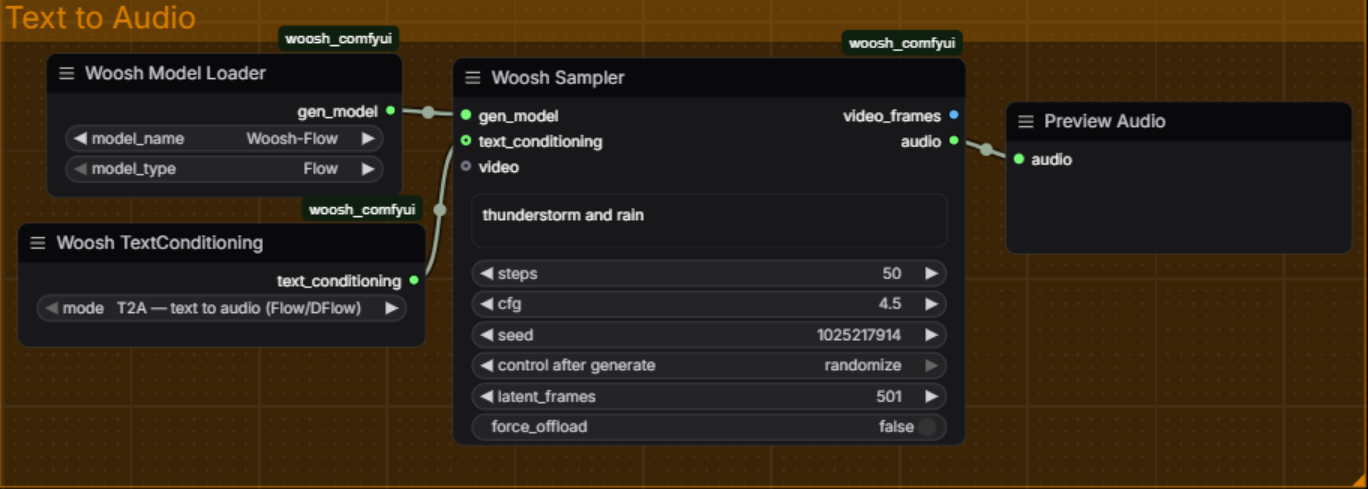
Woosh Model Loader is the model loading node with two key parameters: model_name to select the downloaded model folder, and model_type to select the model type. There are four model types: Flow (basic text-to-audio, best quality), DFlow (distilled version, outputs in 4 steps, over 10x faster), VFlow (basic video-to-audio), and DVFlow (distilled video-to-audio).
Woosh Sampler is the core generation node. Enter a text description of the desired sound in the prompt parameter, for example 'thunder rolling accompanied by raindrops falling on a tin roof.' steps controls the sampling steps — Flow/VFlow recommends 50 steps, DFlow/DVFlow needs only 4 steps. cfg is the guidance strength — use 4.5 for base models, 3.5 for distilled models. latent_frames controls audio duration — 100 frames equals approximately 1 second, with the default of 501 frames being roughly 5 seconds. Setting seed to 0 produces random results; a fixed value enables reproducibility.
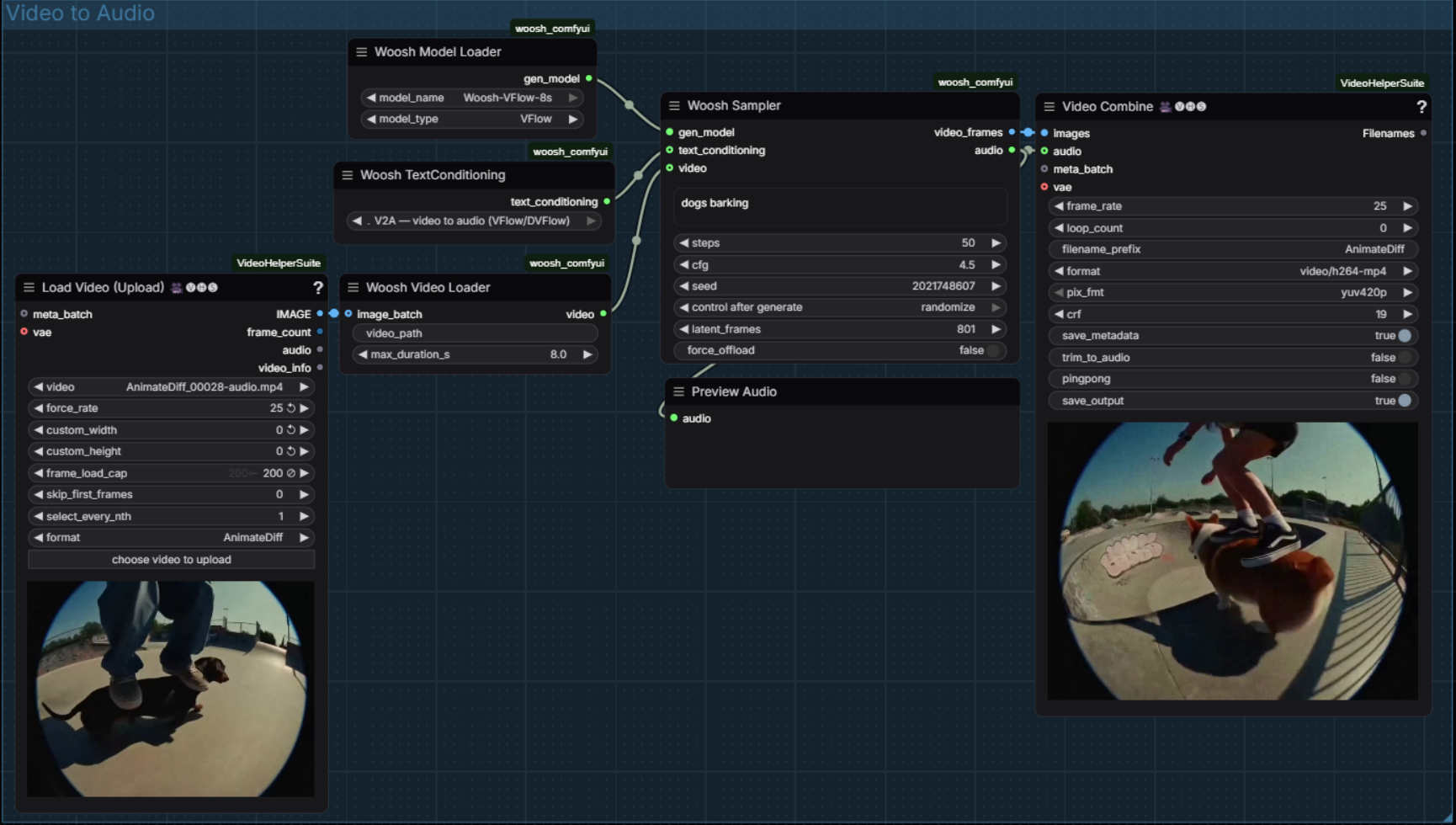
Woosh Video Loader handles loading video files. Fill in the video path in video_path, and max_duration_s limits the maximum duration (default 8 seconds). It also supports directly receiving image batches as video input. This node is essential in video-to-audio workflows.
Woosh TextConditioning loads the CLAP text conditioning processor. The mode parameter must match the task: choose T2A for text-to-audio, and V2A for video-to-audio. Choosing the wrong mode will cause errors or incorrect generation results — this is the most common pitfall for beginners.
Building Two Types of Workflows
Text-to-Audio Workflow: Woosh Model Loader (select Flow or DFlow) connects to Woosh Sampler, the Sampler's prompt contains the text description, and the output is audio in AUDIO format. This can be directly connected to ComfyUI's Save Audio node to save as a file.
Video-to-Audio Workflow: Woosh Video Loader loads the video, connects to Woosh Model Loader (select VFlow or DVFlow), then connects to Woosh Sampler. The Sampler outputs both video_frames (image batch) and audio. If you need to combine audio and visuals into a finished video, you additionally need to install the ComfyUI-VideoHelperSuite node package and use the VideoCombine node to merge frames and audio into an MP4 output.
VRAM Optimization Strategies
Woosh models have certain VRAM requirements. Flow and VFlow need 8 to 12 GB of VRAM, while DFlow and DVFlow drop to 4 to 6 GB. If you're short on VRAM, here are three solutions: First, enable the force_offload option on Woosh Sampler to automatically unload the model from VRAM to system memory after execution, reducing VRAM usage to 2–4 GB; Second, use the distilled models DFlow/DVFlow directly — they not only use less VRAM but are also much faster; Third, reduce the latent_frames value — for example, from 501 to 301, shortening audio duration from 5 seconds to 3 seconds, which also decreases VRAM usage.
Common Issues
If you see 'Error loading state_dict in strict mode' after installation, don't worry — this is normal, and non-strict mode loading works fine. If the RoBERTa model re-downloads every time you restart, that's a HuggingFace caching mechanism issue — after the first download it will use local cache. A full restart of ComfyUI can resolve most import errors. For more details, refer to the README and issue section of the GitHub repository.
The integration of Woosh fills the audio generation gap in ComfyUI workflows. Previously, creating AIGC content meant visuals and audio were handled as two separate pipelines; now the entire workflow can be completed in one place within ComfyUI. For AI comic dramas, AI advertisements, and short video creators, this workflow integration is far more significant than using Woosh's command line independently.


